Practical digital resources designed to help you learn, work smarter, and develop valuable digital skills.
📘 Ebooks
Practical guides and learning resources.
Excel Guide: Practical Basic to Advanced
PRACTICAL SUCCESS GUIDE ON EXCEL
Preface
This book is a concrete success manual to computer literacy. It is a practical guidebook for whosoever that wants to have a practical knowledge of Excel from Basic to Advanced level. It is a comprehensive study guide for beginners and gurus as is compiled with step to step and some short-cut keys that can enable you work as a professional.
This manual is primarily aimed at helping those who encounter any practical challenge in Electronic spread sheet (Excel), the screenshots here will help you to quickly understand it.
Success is yours, Happy reading…!
TABLE OF CONTENTS
INTRODUCTION
AREAS OF APPLICATION
EXCEL’S ENVIRONMENT
FORMATTING TOOLS OR FORMATTING BAR
HOW TO FIT A LONG LABEL
HOW TO LOAD MICRO SOFT EXCEL
UNDERSTANDING EXCEL (ESS) DEEP
HOW TO SAVE
HOW TO SAVE WITH SECURITY
HOW TO OPEN
HOW TO COPY AND PASTE
HOW TO DELETE
HOW TO MERGE CELLS
HOW TO WRAP A TEXT
HOW TO SHRINK TEXT
HOW TO ADJUST FONT SIZE, STYLE AND COLOUR
HOW TO APPLY SUPER SCRIPT OR SUBSCRIPT
HOW TO APPLY FILL COLOUR
HOW TO SHOW GRID LINES IN THE SHEET
HOW TO HIDE OR REMOVE IT
ALIGNMENT
TEXT ORIENTATION
HOW TO ADD CURRENCY ($)SYMBOL TO NUMBERS
ADDING PERCENTAGE
TO APPLY COMMA
HOW TO INSERT A CELL, ROW, COLUMN OR SHEET
HOW TO DELETE CELL, COLUMN, ROW AND SHEET
FIND (CTRL + F)
FIND AND REPLACE (CTRL + H)
HOW TO SELECT OBJECTS (WITH OBJECT SELECTING TOOL)
HOW TO PROTECT/LOCK YOUR SHEET
HOW TO USE DICTIONARY
TEXT BOX
HOW TO APPLY TEXT BOX
HOW TO INSERT WORDART
INSERT FUNCTION
HOW TO PERFORM MATHEMATICAL OPERATIONS LIKE ADDITION, SUBTRACTION & MULTIPLICATIONS
HOW TO ADD
SAMPLE 1
SAMPLE 2
EXERCISE
COMMON SYMBOLS USED IN EXCEL FOR CALCULATION
HOW TO SUBTRACT
HOW TO MULTIPLY
SCIENTIFIC ANALYSIS
STEPS TO SOLVE TAN
STEPS TO SOLVE COS
STEPS TO SOLVE SIN
STEPS TO SOLVE LOG
STEPS TO SOLVE PRODUCT OR MULTIPLICATION
STEPS TO SOLVE POWER
STEPS TO SOLVE POWER (COLUMN G)
STEPS TO SOLVE SQUARE-ROOT
STEPS TO ROUNDUP OR APPROXIMATE
EXERCISE
EXERCISE ONE
EXERCISE TWO
STATISTICAL ANALYSIS
EXERCISE THREE
EXPLANATIONS
SPREAD SHEET USED IN INEC TO ANALYZE DATA
SALES REPORT ANALYSIS
ACCOUNTING REPORTS
ACCOUNT REPORT FOR EXAMS EXPENDITURE
HOW TO USE/INSERT PIE CHART
COLUMN
HOW TO APPLY COLUMN
LINE (GRAPH)
CONVERTING CURRENCIES
HOW TO CONVERT US DOLLAR TO NAIRA
CONVERTING FROM NAIRA TO DOLLAR & OTHER CURRENCIES
E-FORMULA
COMMONLY USED SYMBOLS
HOW TO COMPUTE EXAMS RESULT
EXERCISE 1
HOW TO PREPARE PAYMENT VOUCHER
EXERCISE 2
MEAN/AVERAGE
STANDARD DEVIATION
CONCATENATION
CELL REFERENCING
RELATIVE CELL REFERENCING AND ABSOLUTE CELL REFERENCING
AUTOMATING SPREADSHEETS OR SALES IN EXCEL
HOW TO PRINT
INTRODUCTION
Microsoft Excel is a spreadsheet program that is used to manage, analyze, and present data. Or Spreadsheet is a program primarily designed to solve all kinds of problems related to statistical, scientific, financial, mathematical analysis, budgeting and computation. It includes many powerful tools that can be used to organize and manipulate large amounts of data, perform complex calculations, create professional-looking charts, enhance the appearance of worksheets, and more.
This section provides an overview of the Excel 2013 user interface and covers how to perform basic tasks such as; starting and exiting the program; creating, saving, opening, and closing workbooks; selecting cells; entering and editing data; formatting text and numbers; positioning cell contents; applying cell styles; and getting help.
AREAS OF APPLICATION
- Scientific analysis
- Statistical analysis
- Sales report analysis
- Accounting report
- Inventory
- Forecasting
- Mathematical analysis
- Budget analysis etc.
This book comprises the learners and the professionals’ version. There is no difference between the two of them than the screen arrangement. In this guide, the elucidated one is the learner’s edition then followed by the professional.
Note nothing is difficult except you take it that way.
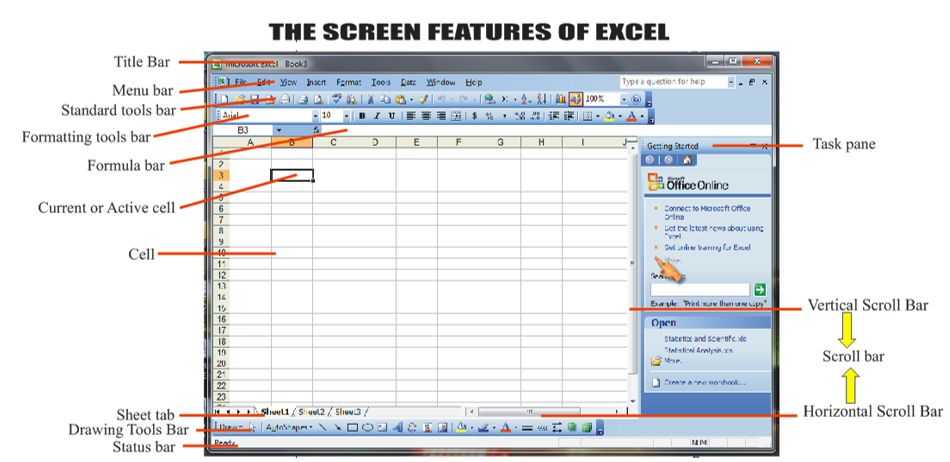
Before you can understand this application, you must first understand its screen features or environment. Below are their features.
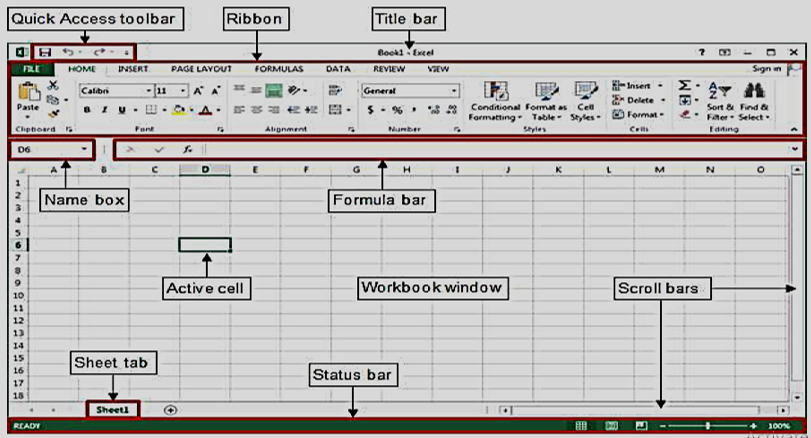
The above version is for professionals. Meanwhile, there are other higher ones, all performing the same task although beginners can also work on it but the one below is very good for learners because of the screen features. Nevertheless, we will be working on the two windows since they are similar but basically based with the higher version because we need to advance
Cell: Small boxes where data could be entered into. It is the unit of a work-sheet where data is stored. It can also be said to be the intersection of the column and the row. Below is the figure.
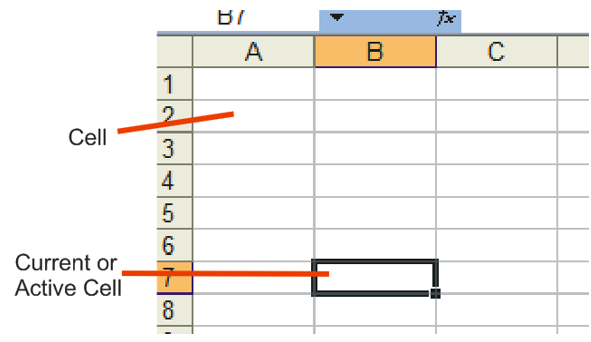
Active Cell: It is a current cell that indicates where the next action will take place. Before you input any data into a cell, you must first click on it. When clicked, that means you have activated the cell and the difference is the highlighted rectangular line. See the diagram above.
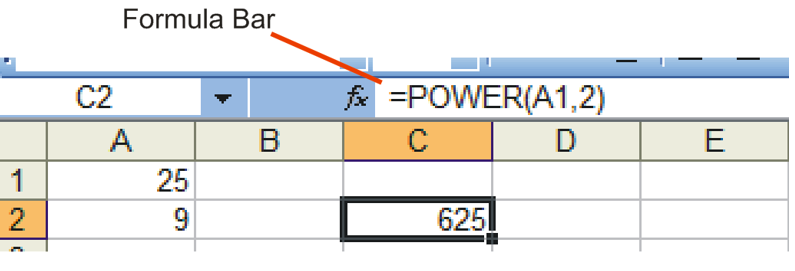
Formula bar: A bar that contains and displays the formulas in a cell. To see formulas after entering them, click on that cell and hover your eyes to the bar.
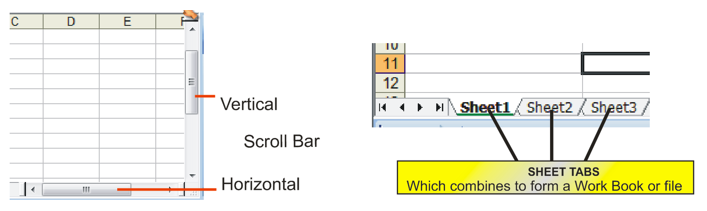
The Scroll bars and the Sheet Tabs as seen above
What is a Label?
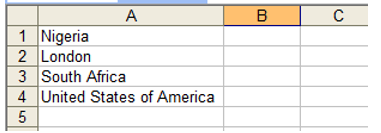
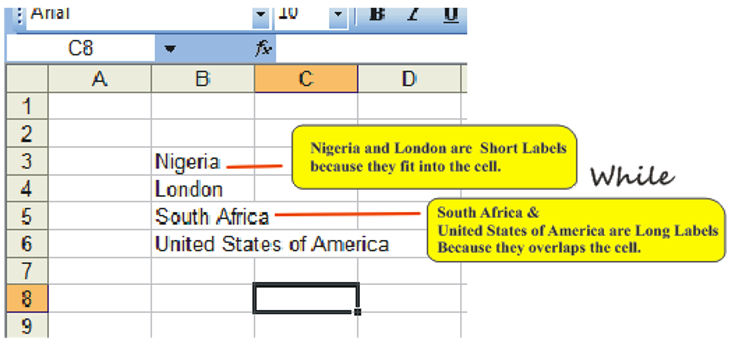
Label: Is an alphabet, numeric, alphanumeric or symbols that cannot be used for calculation. What you type into the cell, be it numbers, alphabets, symbol etc is addressed as a label. When a label (content) fit into a cell, it is called short Label and when is longer than the cell, is called long label. See the diagram below;
How to fit a long label
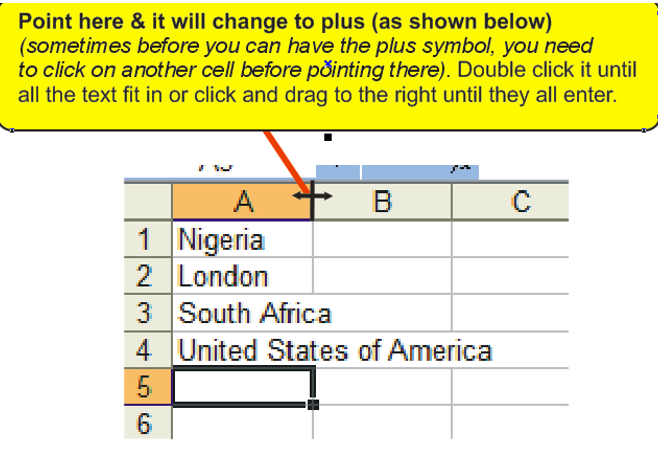
1. Point the cursor on the column width
2. Double click on it
Or
1. Point the cursor on the column of the overlap cell
2. Left click and drag. (This is how it will appear)