
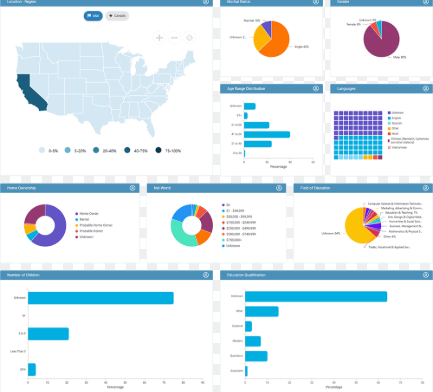
How to Create a Professional Dashboard Step by Step
Data is everywhere. Businesses collect information about sales, customers, products, employees, expenses, marketing campaigns, and many other activities. However, having data is not enough. You need to turn that data into information that is easy to understand and use.
This is where a Power BI dashboard can be useful.
Microsoft Power BI is a business intelligence and data visualization platform that allows you to connect to data, transform it, analyze it, and present the results through interactive reports and visualizations.
A well-designed Power BI dashboard can help you see important business metrics at a glance instead of going through hundreds or thousands of rows in an Excel spreadsheet.
In this guide, you will learn how to create a professional Power BI dashboard step by step, including how to import data, clean your data, create visualizations, add KPIs, use filters, and improve your dashboard design.
What Is a Power BI Dashboard?
A Power BI dashboard is a visual way of presenting important information and key performance indicators in one place.
Instead of looking at a large spreadsheet and trying to understand what is happening, a dashboard can display information using charts, cards, tables, maps, and other visual elements.
For example, a sales dashboard could display:
- Total sales
- Number of orders
- Total profit
- Best-selling products
- Sales by region
- Monthly sales trends
- Sales by salesperson
- Average order value
Microsoft describes a Power BI dashboard as a single-page canvas that brings together visualizations and highlights the most important information from underlying reports and data models.
Power BI Dashboard vs Power BI Report
Power BI dashboards and reports are related, but they are not exactly the same.
A Power BI report can contain multiple pages and is designed for deeper analysis. Users can interact with charts, filters, slicers, drill-through features, and other report elements.
A Power BI dashboard, on the other hand, is a single-page view that focuses on important information and can contain visualizations pinned from reports.
Microsoft’s documentation explains that reports are interactive, multi-page documents, while dashboards provide a single-page overview of important information.
For someone learning Power BI, it is useful to understand both.
Why Are Power BI Dashboards Important?
A good dashboard can make complex data easier to understand.
Imagine that a company has 50,000 sales transactions stored in Excel. Looking through the spreadsheet manually would take considerable time.
A Power BI dashboard could summarize the same information into a few useful visuals.
For example:
Total Sales: ₦25,000,000
Total Orders: 4,250
Total Profit: ₦6,800,000
Top Product: Laptop
Best Region: South West
A manager could then investigate the underlying data when more detail is needed.
Dashboards are particularly useful for monitoring performance, identifying trends, comparing categories, and communicating results.
What You Need to Create a Power BI Dashboard
Before creating your dashboard, you need three main things:
1. Power BI
Install Power BI Desktop if you want to build reports and perform data analysis.
Power BI Desktop provides tools for connecting to data, transforming data, creating models, and designing reports.
2. A Dataset
You need data to analyze.
Your dataset could come from:
- Excel
- CSV
- SQL databases
- Cloud services
- Other supported data sources
For beginners, Excel is an excellent place to start.
3. A Question You Want to Answer
Don’t create charts simply because they look attractive.
Start with questions.
For example:
- How much did we sell this month?
- Which product generated the most revenue?
- Which region performed best?
- Which month had the highest sales?
- Which salesperson generated the most revenue?
Your dashboard should help answer these questions.
Step 1: Prepare Your Data
Before importing your data into Power BI, make sure it is reasonably organized.
For example, your sales dataset could contain:
| Date | Product | Region | Quantity | Sales | Profit |
| Jan 5 | Laptop | South | 5 | 750000 | 150000 |
| Jan 8 | Monitor | West | 8 | 320000 | 80000 |
| Jan 12 | Printer | North | 3 | 210000 | 60000 |
| Jan 15 | Laptop | East | 6 | 900000 | 180000 |
Avoid unnecessary blank rows and columns.
Make sure dates are stored as dates, numbers are stored as numbers, and column names are clear.
Clean data will make your analysis easier.
Step 2: Import Your Data into Power BI
Open Power BI Desktop.
Select Get Data and choose your data source.
If your dataset is in Excel, select Excel and locate your workbook.
Power BI will display the available sheets or tables.
Select the table you want to analyze and load it into Power BI.
For a more advanced workflow, you can select Transform Data to open Power Query and clean your dataset before loading it into the model.
Step 3: Clean Your Data
Data cleaning is an important part of data analysis.
Check for:
- Duplicate records
- Missing values
- Incorrect data types
- Spelling inconsistencies
- Incorrect dates
- Unnecessary columns
- Empty rows
For example, your region column might contain:
South
south
SOUTH
Although these may refer to the same region, inconsistent values can affect your analysis.
Standardize them before creating your dashboard.
Power BI provides Power Query for transforming and preparing data before analysis.
Step 4: Create Your First Power BI Visual
After loading your data, go to the report canvas.
Power BI provides different visualizations, including:
- Bar charts
- Column charts
- Line charts
- Pie and donut charts
- Tables
- Matrices
- Cards
- Maps
- Scatter charts
Start with simple visuals.
For example, to compare sales by product, create a bar chart.
Put Product in the category or axis field and Sales in the values field.
Power BI will summarize your sales data and display the result visually.
Step 5: Create a Sales KPI Card
One of the most useful dashboard elements is a KPI card.
A card can display a single important number.
For example:
Total Sales
₦25,000,000
You can also create cards for:
- Total Profit
- Total Orders
- Customers
- Average Sales
- Quantity Sold
Cards make important numbers immediately visible.
However, avoid putting too many cards on the dashboard. Focus on the metrics that actually matter.
Step 6: Create a Monthly Sales Chart
A line chart is useful when you want to understand how a value changes over time.
For example, you can create a monthly sales trend.
Use:
Date → X-axis
Sales → Y-axis
This allows you to see whether sales increased or decreased over time.
A line chart can also help you identify unusually high or low periods that deserve further investigation.
Step 7: Analyze Sales by Region
You may also want to know where your business is performing best.
Create a column or bar chart using:
Region → Axis
Sales → Values
The resulting chart can show how much each region contributed to total sales.
This type of analysis can help businesses investigate geographic performance.
Remember that a chart shows what happened; additional analysis may be needed to determine why it happened.
Step 8: Add a Slicer
Slicers allow users to filter report data interactively.
For example, you could add a slicer for:
- Year
- Month
- Product
- Region
- Salesperson
Suppose your dashboard contains sales from January to December.
A user could select March from the slicer and view information related to March.
Microsoft Power BI reports support filters and slicers as part of their interactive reporting capabilities.
Slicers are especially useful when creating dashboards for users who need to explore the data themselves.
Step 9: Create a Professional Dashboard Layout
A dashboard should not be filled with random charts.
Arrange your visuals logically.
A simple structure could look like this:
Top section
Total Sales | Total Profit | Total Orders | Customers
Middle section
Monthly Sales Trend | Sales by Product
Bottom section
Sales by Region | Product Performance
Side or top filter area
Year | Month | Region
This arrangement allows users to see the most important information first.
7 Power BI Dashboard Design Tips
1. Keep It Simple
Do not use every available chart.
Use only visuals that communicate useful information.
2. Use Consistent Formatting
Keep fonts, labels, spacing, and formatting consistent throughout the dashboard.
3. Highlight Important KPIs
Put your most important metrics where users can easily see them.
4. Avoid Too Many Colors
Using many different colors can make a dashboard difficult to understand.
Choose a simple visual theme and use color purposefully.
5. Use Appropriate Charts
Use line charts for trends, bar or column charts for comparisons, and cards for key numbers.
6. Give Every Chart a Clear Title
A user should understand what a chart represents without guessing.
Instead of:
Chart 1
Use:
Monthly Sales Trend
7. Test Your Dashboard
Before sharing your dashboard, click through the filters and visuals.
Check that the numbers are correct and that the dashboard works as expected.
Power BI Dashboard Examples
There are many types of Power BI dashboards you can create.
Here are some ideas:
Sales Dashboard
Track:
- Revenue
- Profit
- Orders
- Products
- Regions
- Monthly performance
Financial Dashboard
Track:
- Income
- Expenses
- Profit
- Budget
- Cash flow
Marketing Dashboard
Track:
- Campaign performance
- Leads
- Conversions
- Website traffic
- Advertising costs
Human Resources Dashboard
Track:
- Employees
- Recruitment
- Turnover
- Attendance
- Department performance
Inventory Dashboard
Track:
- Stock levels
- Products
- Reorder levels
- Inventory value
- Fast-moving products
These examples can give you ideas for building your own Power BI projects.
How to Make Your Power BI Dashboard Interactive
Interactivity is one of the features that makes Power BI useful.
You can use:
- Slicers
- Filters
- Drill-through
- Tooltips
- Buttons
- Bookmarks
- Cross-filtering
For example, clicking a product in one visual can affect other visuals depending on how your report is configured.
This allows users to explore information instead of simply looking at static charts.
Power BI reports support interactive features such as cross-filtering, drill-through navigation, bookmarks, and slicers.
Can Beginners Learn Power BI?
Yes.
You do not need to be an expert programmer to start learning Power BI.
A beginner can start with:
- Excel data
- Data cleaning
- Basic Power BI visuals
- Cards and KPIs
- Filters and slicers
- Basic data modeling
- DAX
- Dashboard design
As your skills improve, you can move into more advanced Power BI features and broader data analysis workflows.
Microsoft also provides Power BI learning resources covering dashboard creation, themes, data alerts, Copilot, and other features.
What Should You Learn After Power BI?
Power BI is only one part of a complete data analysis skill set.
If you want to become a professional data analyst, consider learning:
- Microsoft Excel
- SQL
- Power BI
- Tableau
- Python
- Data visualization
- Statistics
- Artificial intelligence for data analysis
Learning several complementary tools can help you work with data from different sources and solve a wider range of analytical problems.
Final Thoughts
A Power BI dashboard can transform a large dataset into an interactive and understandable visual report.
The key is not to create as many charts as possible. Instead, identify the questions you want your data to answer and build your dashboard around those questions.
Start with a simple Excel dataset. Clean the data, import it into Power BI, create a few useful visualizations, add KPIs and filters, and then improve the design.
With regular practice, you can progress from creating simple Power BI dashboards to building more advanced business intelligence reports.
Want to Learn Power BI and Data Analysis?
If you want to develop practical data analysis skills, Digital Ukey provides training in Excel, MySQL, Power BI, Tableau, Python, and AI.
Whether you are a student, graduate, job seeker, professional, or business owner, practical data skills can help you understand information and make better use of data.
Ready to start learning?
Visit Digital Ukey at https://digiukey.com/ and explore our Training and Courses pages to learn more about available learning opportunities.
Build Skills. Create Opportunities. Stay Ahead.